
Using the Functions
Menu Location
The AI signal report menu is located in the main menu bar between Scripts and System control. It contains four items: Generate AI report, Export Signal Metrics, Copy analysis prompt to clipboard, and Settings.
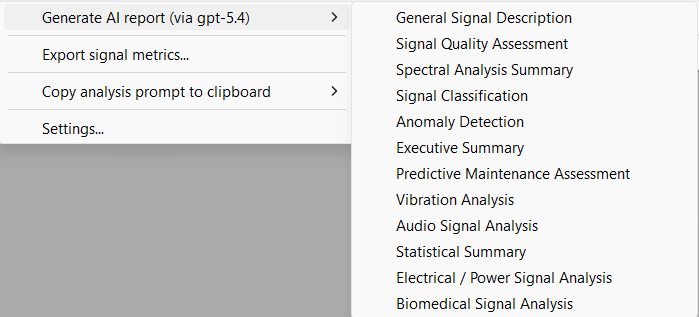
Generate AI report
This is the primary function. It sends the current signal's metrics to the configured LLM and opens the resulting analysis in your default web browser.
The menu item displays the currently configured model name, for example "Generate AI report (via Claude Haiku 4.5)". If no LLM service has been configured yet, it displays "Generate AI report (LLM not configured)" and clicking it opens the Settings dialog so you can set up your provider and API key.
When you click "Generate AI report", a submenu appears listing all available analysis modes (for example, General Signal Description, Signal Quality Assessment, Spectral Analysis Summary, and others). Select the mode that matches your needs. The Signal Comparison mode does not appear in this submenu because it requires multiple signals. See the Control Window section below for signal comparison.
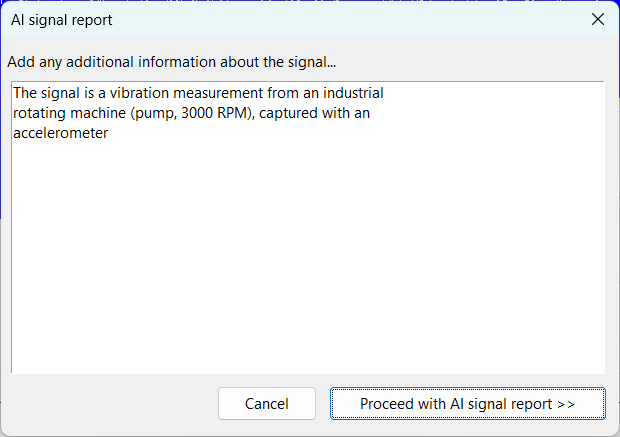
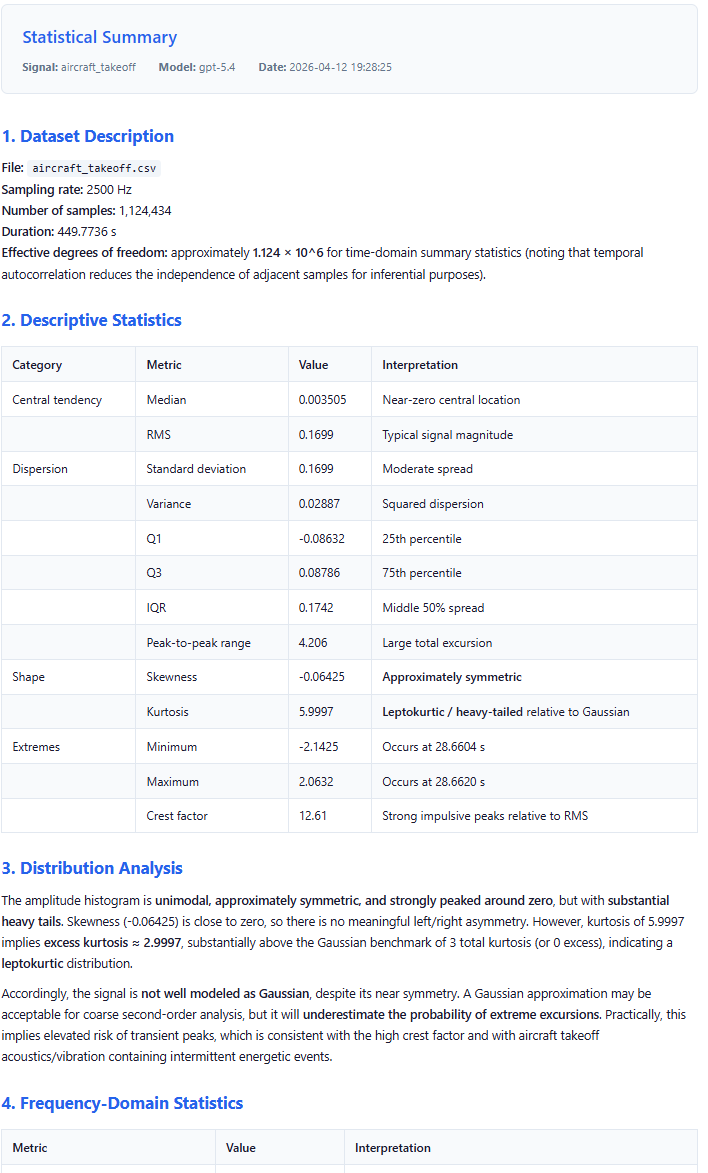
After you select a mode, SIGVIEW computes the signal metrics, asks about any additional information you may provide and sends everything to the LLM. When the analysis is complete, the result opens as a formatted HTML page in your default web browser. A typical analysis takes between 5 and 30 seconds depending on the model and the complexity of the signal data.
Export Signal Metrics
This function saves the signal's computed metrics as a JSON file. A standard Windows Save File dialog appears, with the default filename based on the signal name.
The exported file contains the same data that is sent to the LLM during automated analysis. You can use this file for manual analysis with any LLM chat interface, for archiving measurement data alongside the raw signal, for importing into other analysis tools or scripts, or for comparing signal metrics across different recordings.
This function is always available when a signal is loaded, regardless of whether an LLM service has been configured.
Copy Analysis Prompt to Clipboard
This function copies the text of a selected analysis prompt to the Windows clipboard. A submenu appears listing all available analysis modes, including Signal Comparison.
After copying, you can paste the prompt into any LLM chat interface of your choice. This is intended for manual usage, as described below.
This function is always available, regardless of whether an LLM service has been configured.
Settings
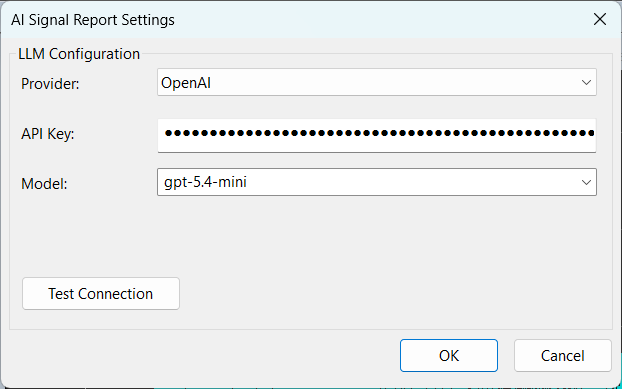
Opens the configuration dialog where you select your LLM provider, enter your API key, choose a model, and test the connection. See the Overview and Setup topic for detailed configuration instructions.
Comparing signals and using AI signal report from Control Window
When working with signals in SIGVIEW's Control Window, two additional AI signal report functions are available depending on how many signals you have selected.
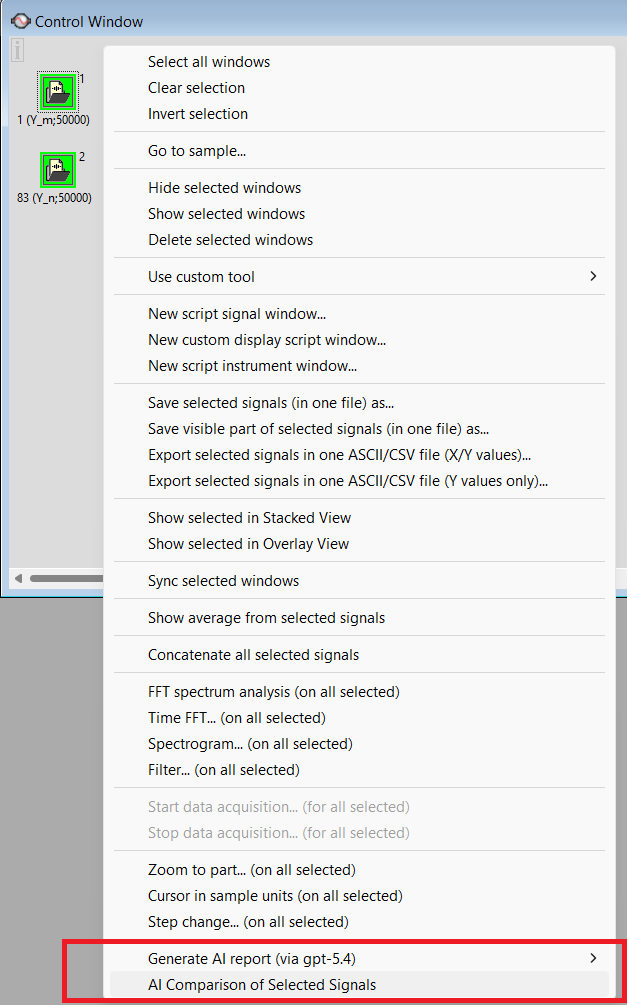
When one or more signals are selected, the function "AI signal report for Selected Signal" is available. This opens a mode selection submenu and generates a separate analysis report for each selected signal using the chosen mode. Each report opens in a separate browser tab.
When two or more signals are selected, an additional function "AI Comparison of Selected Signals" becomes available. This uses the Signal Comparison analysis mode to produce a single report comparing all selected signals side by side. The report identifies differences and similarities in amplitude, spectral content, quality, temporal behavior, and statistical properties across all the selected signals.
Manual Usage
If you prefer to use your own LLM tool, such as the ChatGPT web interface, Claude.ai, Google Gemini chat, or any other AI assistant, you can perform the analysis manually using SIGVIEW's export functions.
Load your signal in SIGVIEW.
1.Go to AI signal report, then Export Signal Metrics, and save the JSON file to a location of your choice.
2.Go to AI signal report, then Copy Analysis Prompt to Clipboard, and select the analysis mode you want to use.
3.Open your preferred LLM chat interface in a web browser.
4.Paste the prompt from your clipboard into the chat as your first message or as system instructions, depending on the interface.
5.Upload the JSON file or paste its content as your next message.
The AI will produce the same type of analysis as the automated function.
This approach is useful in several situations. You may want to use a model or service that is not directly supported by SIGVIEW. You may want to ask follow-up questions about the analysis, which is possible in a chat interface but not with the automated function. Or you may want to modify the prompt before sending it to customize the analysis for your specific needs.
For signal comparison via manual usage, export the metrics for each signal as separate JSON files, copy the Signal Comparison prompt, and paste both JSON files into the chat with labels such as "Signal A:" and "Signal B:" before each one.