
Overview and Setup
What is AI Signal Report?
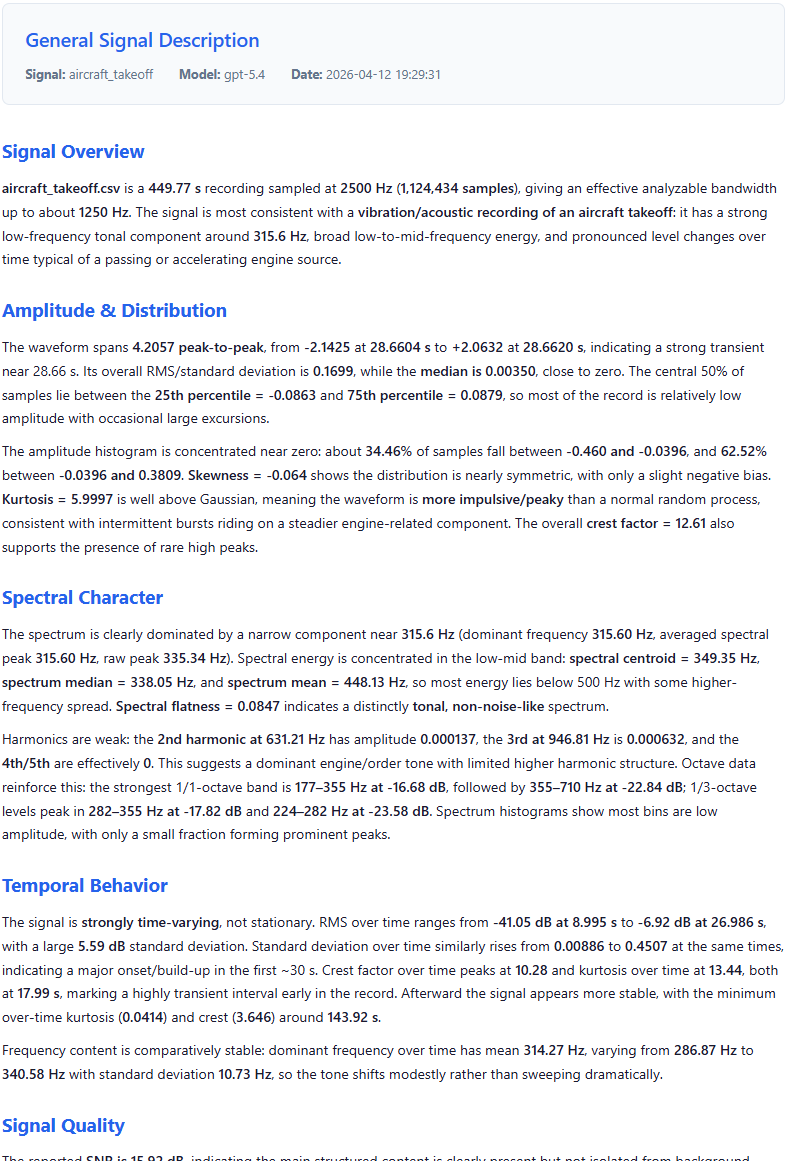
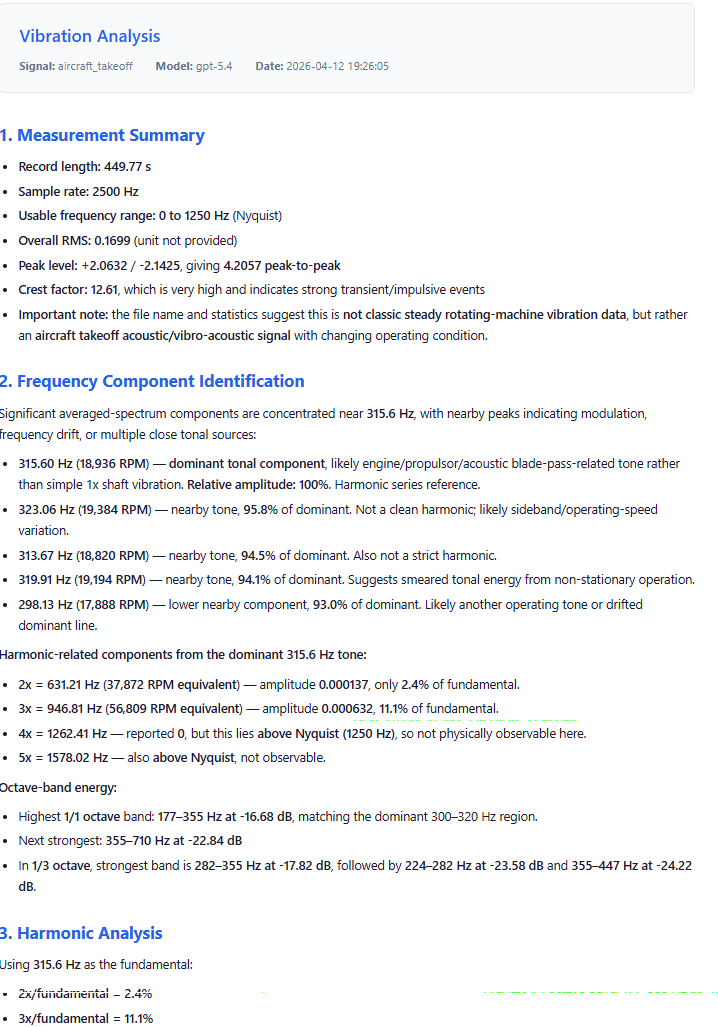
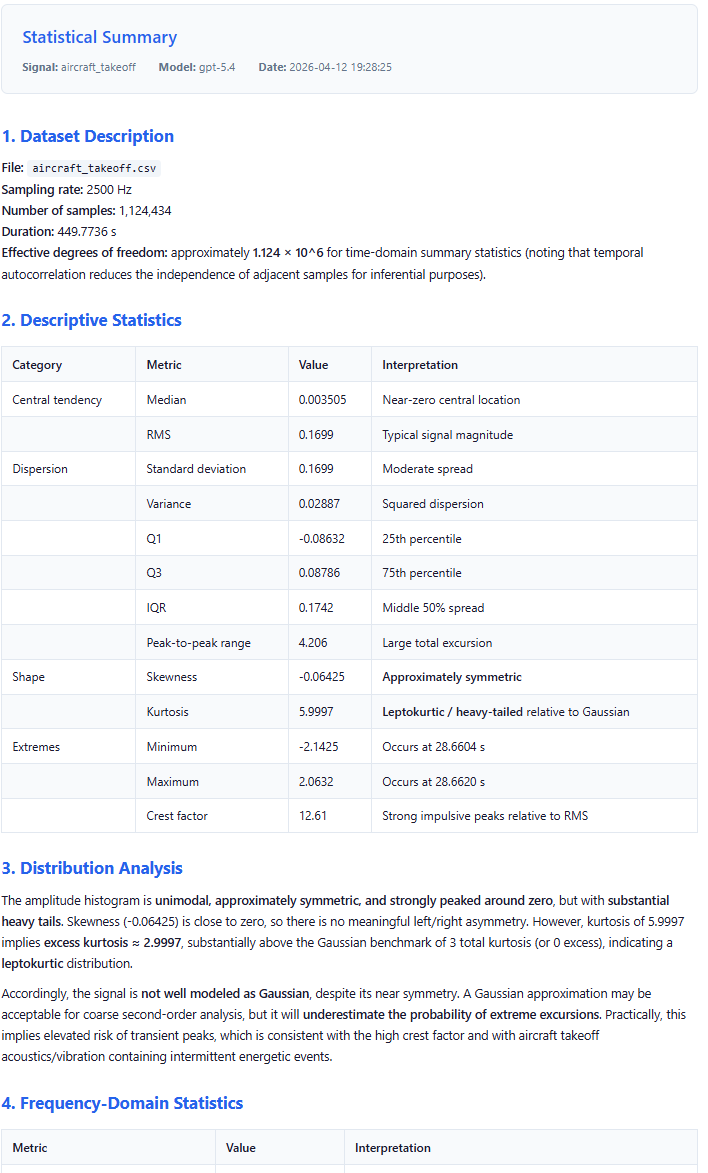
SIGVIEW's AI Signal Report feature uses Large Language Models (LLMs) to automatically generate natural language descriptions, assessments, and diagnostics from your signal data. Instead of interpreting dozens of numerical metrics yourself, you can have an AI produce a readable report tailored to your specific use case.
How It Works
When you use AI Signal Reporting, SIGVIEW performs four steps:
1.SIGVIEW computes a comprehensive set of measurements from your signal. These include amplitude statistics, spectral analysis (both raw and averaged), octave band levels, temporal evolution metrics (how RMS, standard deviation, crest factor, kurtosis, and skewness change over time), autocorrelation, spectral centroid and flatness, dominant frequency tracking, and more. All of these measurements are collected into a structured JSON report. This is the same report produced by SIGVIEW's "Generate Report" tool, which can also be used independently for other purposes.
2.Based on the analysis mode you choose, SIGVIEW selects a specialized prompt that instructs the AI how to interpret the metrics. Each prompt is carefully designed to produce a specific type of analysis. For example, the Predictive Maintenance prompt tells the AI to look for bearing defect indicators, estimate rotational speed, and provide maintenance recommendations. The Audio Analysis prompt tells it to evaluate frequency content in terms of bass, midrange, and treble, and identify the likely audio content type. There are currently 13 analysis modes available, covering general-purpose analysis as well as domain-specific modes for vibration, audio, electrical power, and biomedical signals.
3.The metrics and the prompt are sent together to the LLM service you have configured. The AI reads the metric descriptions (each metric in the report includes a plain-language explanation of what it measures), interprets the values in the context defined by the prompt, and produces a formatted analysis.
4.The AI's response is converted to a styled HTML page and opened in your default web browser.
What to Expect
AI-generated analyses are informative starting points, not definitive conclusions. The quality of the output depends on the signal data, the analysis mode chosen, and the LLM model used.
The AI works only with the numerical metrics provided. It does not see or hear the raw signal waveform.
Different LLM models may produce slightly different analyses from the same data. Premium models (such as Claude Sonnet or GPT-4o) generally produce more nuanced interpretations than budget models (such as GPT-4o mini or Gemini Flash), but even budget models perform well for structured analysis tasks.
Domain-specific modes (Vibration Analysis, Biomedical Signal Analysis, and others) produce the best results when applied to the correct signal type. If you apply a vibration analysis prompt to a music recording, the AI will note the mismatch and fall back to a general assessment.
Each analysis costs a small amount through your LLM provider's API, typically less than $0.01 to $0.03 per report. Costs vary by model and provider.
Obtaining an API Key
To use automated AI signal report generation, you need an API key from one of the supported LLM providers. An API key is a personal access credential that allows SIGVIEW to send requests to the AI service on your behalf. You will be billed directly by the provider based on your usage.
•Anthropic (Claude models):
oVisit console.anthropic.com and create an account. Navigate to API Keys in your account settings. Click Create Key, give it a name such as "SIGVIEW", and copy the key. The key starts with "sk-ant-". Store it securely, as it will only be shown once. You may need to add a payment method and purchase credits before the key will work.
•OpenAI (GPT models):
oVisit platform.openai.com and create an account. Navigate to API Keys in the left sidebar. Click Create new secret key, name it, and copy the key. The key starts with "sk-". Store it securely. Add a payment method under Billing before using the API.
•Google (Gemini models):
oVisit aistudio.google.com and sign in with your Google account. Click Get API Key and then Create API key. Select or create a Google Cloud project when prompted. Copy the generated key. Google's free tier includes limited usage at no cost.
Configuring SIGVIEW
Open AI signal report, then Settings... from the main menu.
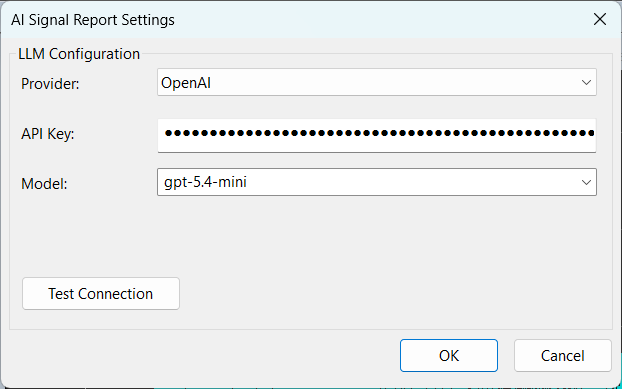
In the Settings dialog, select your Provider from the dropdown. The available options are Anthropic, OpenAI, Google Gemini, and Custom.
Paste your API Key into the key field.
Select a Model from the dropdown, or type a model ID manually. The following starting models are recommended:
For Anthropic, use claude-haiku for a fast and affordable option with good quality.
For OpenAI, use gpt-X.Y-mini for a very affordable option, or gpt-4o for higher quality.
For Google, use gemini-flash for a fast and affordable option.
If you are using a custom or self-hosted LLM endpoint, select Custom as the provider and enter the Base URL of your endpoint.
Click Test Connection to verify that your key and model are working. You should see a success message.
Click OK to save your settings.
Your API key is stored securely using Windows Credential Manager and is never saved in plain text configuration files.