
Network signal streaming
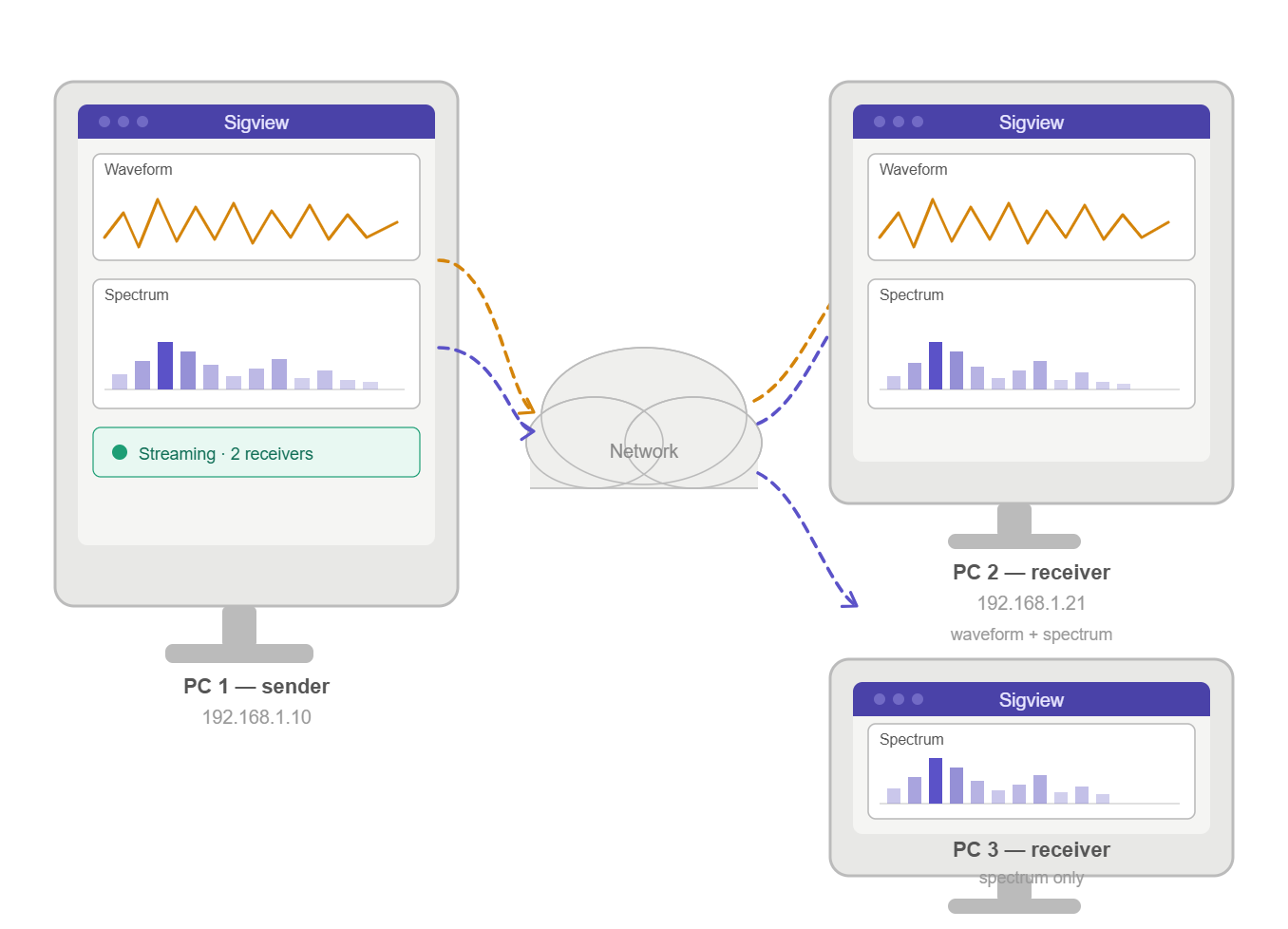
SIGVIEW can stream signal and analysis data in real time from one instance to another over a TCP network connection. This enables scenarios such as:
•Monitoring a remote signal acquisition on a separate machine
•Distributing analysis results from one SIGVIEW instance to multiple receivers
•Bridging signals between separate SIGVIEW workspaces running on different computers
The streaming system consists of two custom tools, available in the Signal tools > Use custom tool > Network menu:
•Network Sender -- attaches to any signal window and streams its content over the network
•Network Receiver -- creates a new signal source window that displays data received from a remote sender
The sender and receiver communicate using the SVST (SIGVIEW Stream) binary protocol over a persistent TCP connection. One sender can serve multiple receivers simultaneously -- all receivers get the same data.
Network Sender
The Network Sender is a "Custom Display Window" tool. It reads data from its parent signal window and sends it to all connected receivers over TCP.
Setting up the sender
•Open or select the signal window you want to stream.
•Open the tool from the menu: Signal tools > Use custom tool > Network > Stream Sender.
•The sender window opens and immediately begins listening for incoming connections.
Configuration
Open the script editor of the sender window to adjust the configuration variable at the top of the script:
# ===== Configuration =====
STREAM_PORT = 9770
# ==========================
STREAM_PORT (default: 9770) -- TCP port number the sender listens on. Each sender on the same machine must use a different port.
Status display
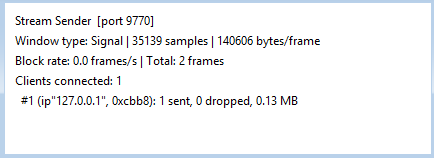
The sender window displays live statistics as text overlay:
•Window type -- Signal or Instrument
•Block size -- number of samples and bytes per frame
•Block rate -- measured input rate in frames per second
•Total frames -- number of frames produced since the sender was started
•Clients connected -- number of active receivers
•Per-client statistics -- for each connected receiver: address, frames sent, frames dropped, and total data volume in MB
Frames are dropped when a receiver cannot keep up with the sender's data rate. This does not affect other receivers.
How it works
Every time the parent signal window updates (for example, when new data is acquired or an analysis result changes), the sender serializes the complete window content -- including all metadata such as sampling rate, axis units, markers, and the sample values -- into a compact binary frame and sends it to all connected receivers. The block size is determined entirely by the parent window.
All network operations run in the background. The sender never blocks SIGVIEW's main execution, even while waiting for receivers to connect or during data transfer.
Network Receiver
The Network Receiver is a Signal Source Window tool. It connects to a remote sender and displays the received signal data as a normal SIGVIEW signal window.
Setting up the receiver
1.Open the tool from the menu: Signal tools > Use custom tool > Network > Stream Receiver. No parent window needs to be selected.
2.The receiver window opens and immediately attempts to connect to the configured sender.
3.Once connected, the remote signal appears in the window and updates in real time.
Configuration
Open the script editor of the receiver window to adjust the configuration variables at the top of the script:
# ===== Configuration =====
STREAM_HOST = "127.0.0.1"
STREAM_PORT = 9770
RECONNECT_DELAY_SEC = 1.0
UPDATE_INTERVAL_MSEC = 5
DISPLAY_STATUS_REPORT = true
# ==========================
•STREAM_HOST (default: "127.0.0.1") -- IP address or hostname of the machine running the sender. Default is "127.0.0.1" for the same machine - so you will have to change it to receive the signal from a remote computer.
•STREAM_PORT (default: 9770) -- TCP port of the sender. Must match the sender's STREAM_PORT.
•RECONNECT_DELAY_SEC (default: 1.0) -- Time in seconds to wait before retrying after a failed connection or disconnect.
•UPDATE_INTERVAL_MSEC (default: 100) -- Polling interval in milliseconds. Controls how frequently the receiver checks for new data. The default of 100 ms supports block rates up to 10 frames per second. Increase this value to reduce CPU usage if the sender's update rate is low.
•DISPLAY_STATUS_REPORT (default: true ) -- turns textual status display on/off
Status display
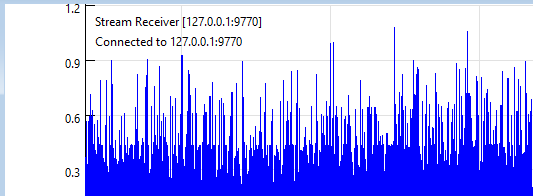
The receiver optionally shows its connection status and frame count as a text overlay in the signal window. When not connected, the status text shows the current connection state and any error messages.
How it works
The receiver connects to the sender in the background and continuously reads incoming data frames. Each received frame completely replaces the window content, including all metadata (sampling rate, axis units, markers, begin time, etc.).
If the connection is lost, the receiver automatically retries after the configured delay. The last successfully received signal remains visible in the window during reconnection.
Like the sender, all network operations run in the background and never block SIGVIEW.
Typical usage example
Scenario: You are acquiring data on Machine A and want to monitor a live FFT spectrum on Machine B.
1.On Machine A, open a signal acquisition and create an FFT analysis window.
2.With the FFT window selected, open Signal tools > Use custom tool > Network > Stream Sender.
3.Note the IP address of Machine A (e.g., 192.168.1.10) and the port (default 9770).
4.On Machine B, open Signal tools > Use custom tool > Network > Stream Receiver.
5.In the receiver's script editor, set STREAM_HOST = "192.168.1.10" and save.
6.The live FFT spectrum from Machine A now appears on Machine B.
Firewall and network considerations
•The sender listens on the configured TCP port. If a firewall is active on the sender's machine, an inbound rule must allow connections to that port.
•Both sender and receiver can run on the same machine using 127.0.0.1 (localhost).
•Multiple senders can run simultaneously on the same machine, as long as each uses a different port number.
•Multiple receivers can connect to the same sender -- all receive identical data.
Performance notes
•The streaming overhead is minimal. On a local network, block rates of 100 frames per second and higher are achievable.
•Each frame carries the full signal block (not incremental updates). Frame size depends on the number of samples in the parent window. For example, a 4096-sample signal produces frames of approximately 16 KB.
•If a receiver cannot keep up with the sender's data rate, older frames are dropped so that the receiver always sees the most recent data. The number of dropped frames is shown in the sender's per-client statistics.
Streaming protocol
For technical details about the streaming protocol, see Streaming protocol specification